10 Data Import
10.1 Check Raw Data
Usually you are given a data set in practice for analysis which could either be downloaded or locally stored as a file.
10.1.1 Storing the data file
To proceed with your data analysis, it would be helpful to have everything organized in the same place.
- First create a folder to store everything related to your current project.
- From the coding perspective, it is recommended to add subfolders under this path, and they are named as
R,Data, andOutput, respectively. - Make sure your data file is saved in the
Datafolder.
10.1.2 Preparing the data file
Before you move on and discover how to load your data into R, it might be useful to go over the following checklist that will make it easier to import the data correctly into R.
- Generally, columns represent variables. Rows represent observations.
- Column names must be unique. Duplicated names are not allowed. The same applies to row names, if any.
- Avoid names, values or fields with blank spaces, otherwise you might encounter errors or unexpected behavior during data analysis and manipulation.
- If you want to concatenate words, insert a
.or_in between two words instead of a space. - Short names are preferred over longer names.
- Try to avoid using names that contain symbols such as
?,$,%,^,&,*,(,),-,#,?,,,<,>,/,|,\,[,],{,}. Only underscore can be used. - Delete any comments that you have made in your Excel file to avoid extra columns or NA’s to be added to your file.
Exercise A
10.2 Import Data
10.2.1 Set Working Directory
You might find it handy to know where your current working directory is set in R:
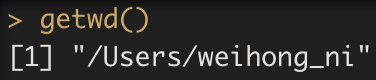
You might consider changing the path, maybe to your project folder:

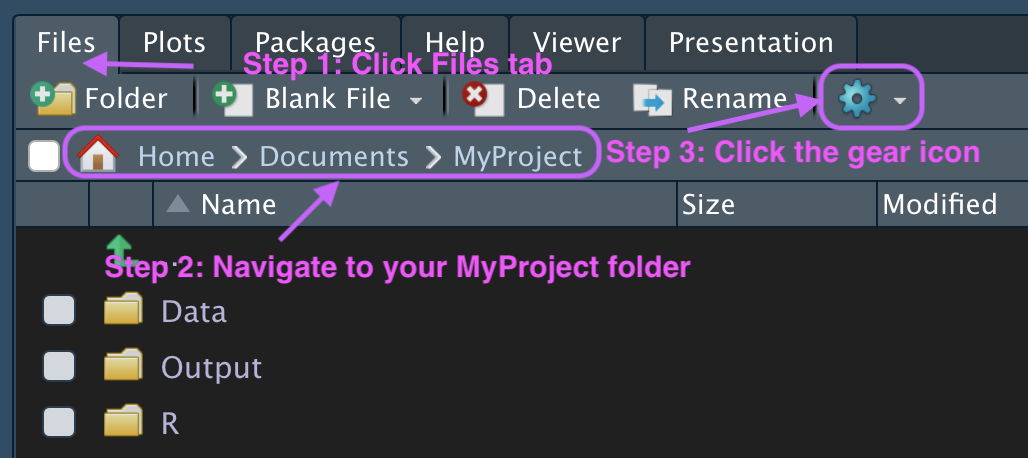
Alternatively, this could be done by making a few clicks in RStudio.
- Activate the
Filestab in your files pane. - Navigate through your folders to reach your current project folder.
- Click the gear icon.
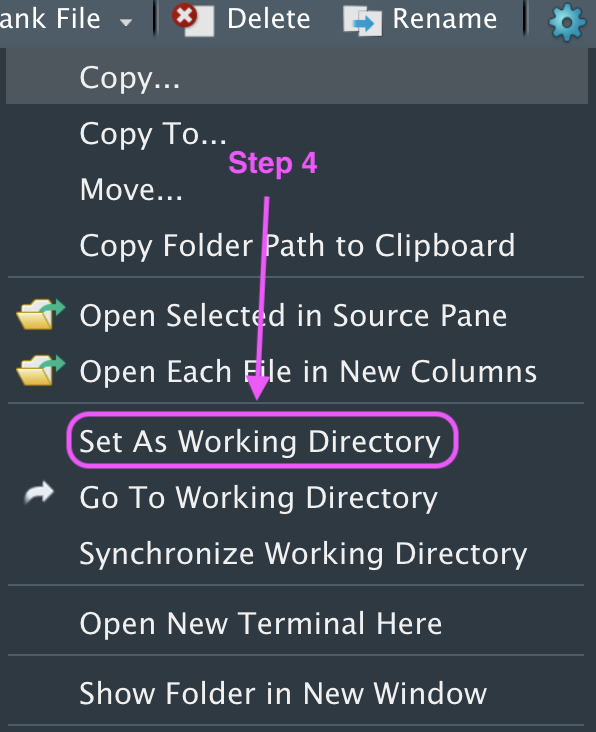
- Choose
Set As Working Directoryfrom the drop down menu.
Exercise B
- Set the working directory in your current R session to the
Datafolder you just created. - Run the code
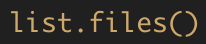 . What is returned in the console?
10.2.2 Load Data
Depending on the data file formats, different functions are used in R to read the data. We will illustrate three common types of files here:
.txt.csv.xlsx
Read TXT files
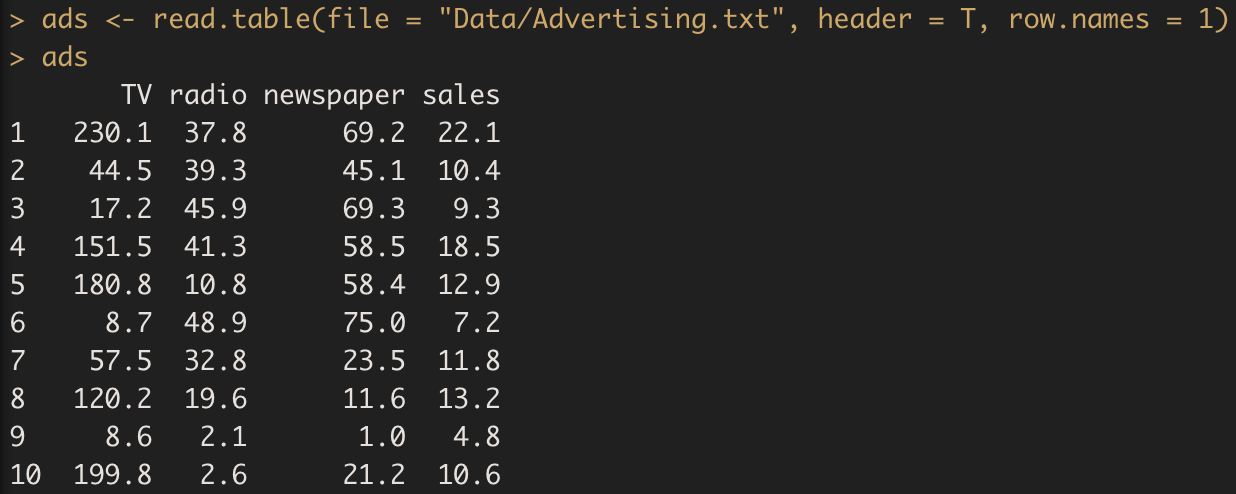
Read CSV files
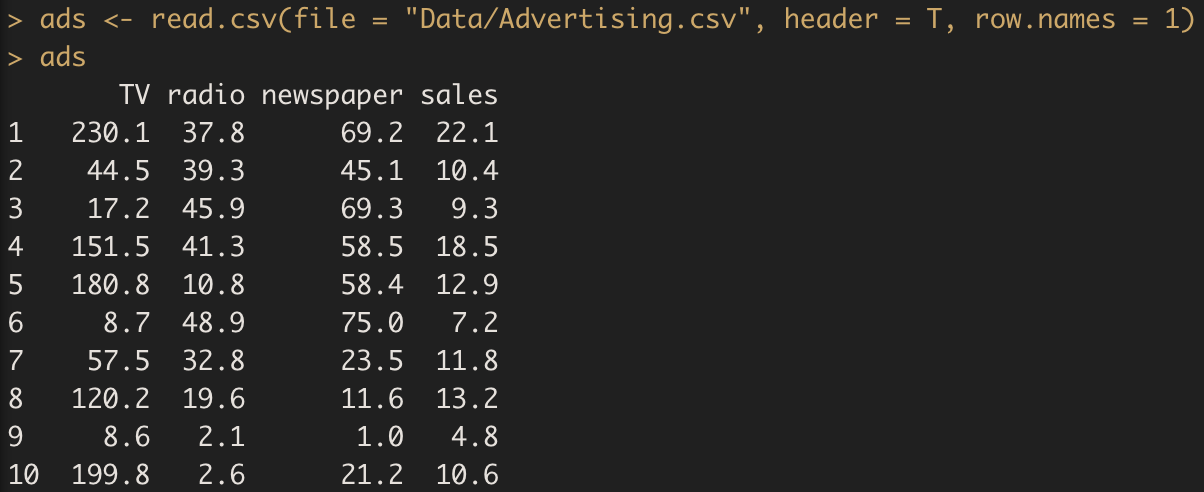
Alternatively, you can make use of read.csv(file.choose()). This will automatically open a window that allows you to browse for the file.
Read XLS or XLSX files
We need to first install and load the readxl package in order to read excel files into R.
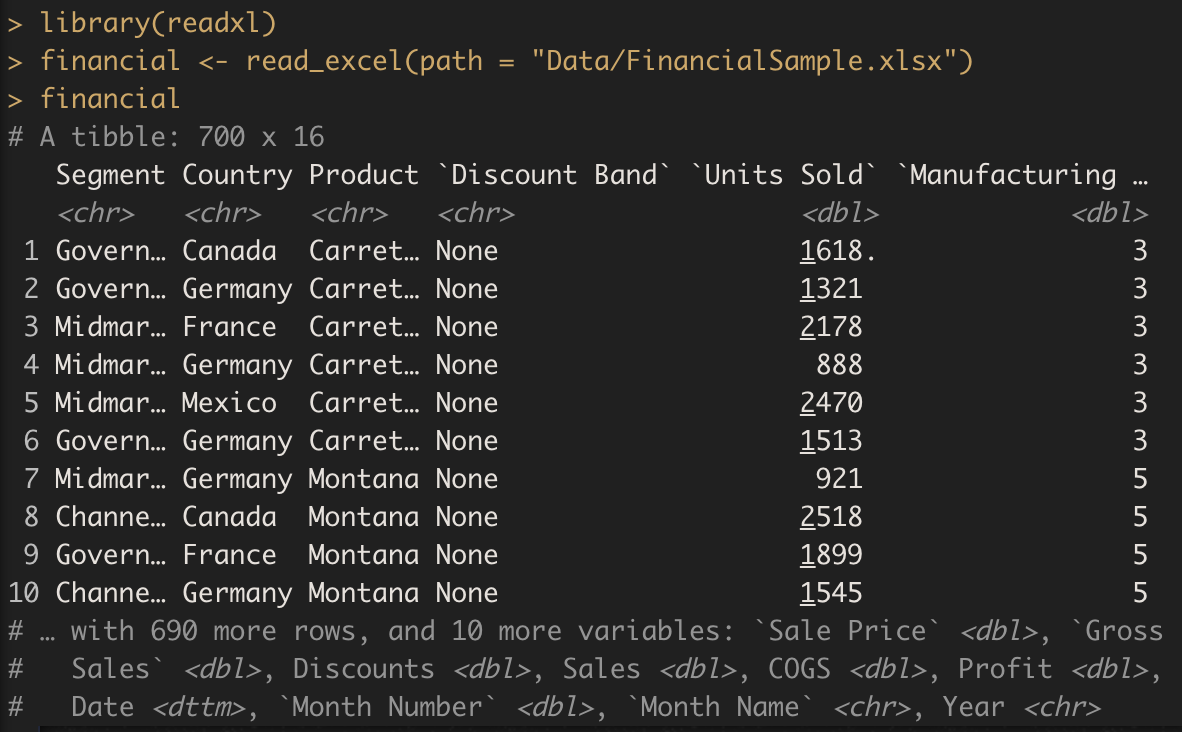
As you can see, the data file is loaded in as a tibble. A tibble is a modern re-imagining of the data frame in R, part of the tidyverse ecosystem. It provides a more user-friendly way to handle data, displaying only the first few rows and variables that fit on the screen, and automatically recognizing the data types.
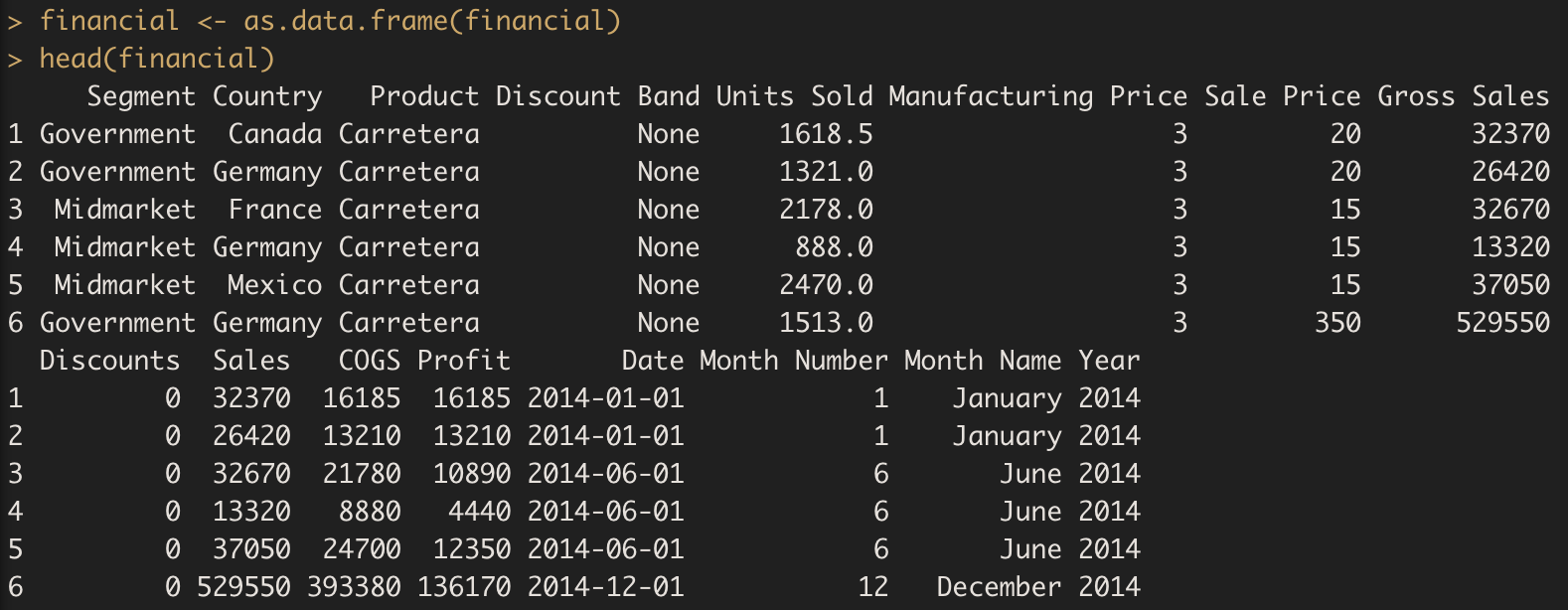
If you do not feel comfortable working with a tibble just yet, you can simply transform it to a data frame by the as.data.frame() function.
However, we will later learn a package called tidyverse which could deal with tibble.
Import data using RStudio
If you prefer, you could also load data into R by making clicks in RStudio. Simply navigate to your Data folder and locate your data files. Click on the data file and you will see a drop down menu where you can select Import Dataset....
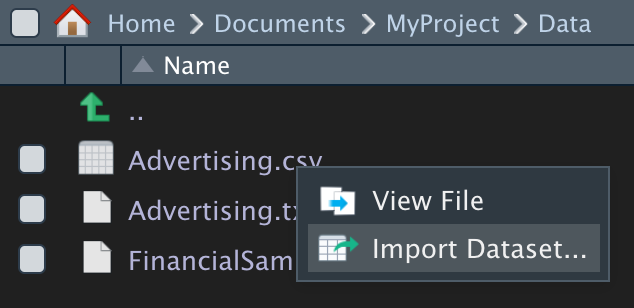
After clicking it, a new window will pop up. The interface is self-explanatory. The part you would probably need to pay additional attention is the Import Options.
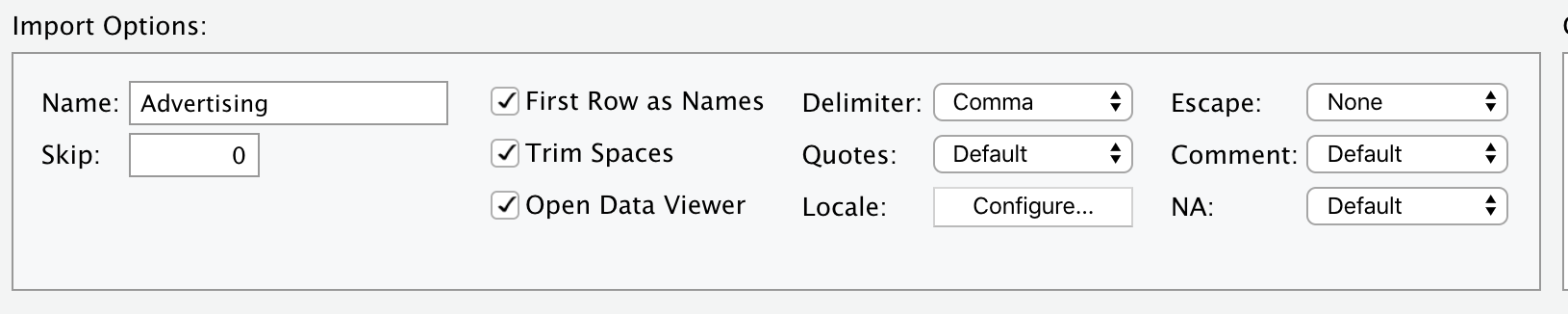
By adjusting the parameters in this box, you will be able to have a preview in the box above of how the data will be loaded.
- Pay attention to your raw data especially when there are redundant rows at the beginning. Then you can use the
skip =argument to specify how many rows you would like to skip at the beginning of the table when reading the data into R. - Also, keep an eye for the last few rows to see whether there are any rows without consistent formatting. You can check the bottom of your table by the
tail()function. - Just in case you would like to import an R data file,
load('filename.RData')reads an.RDatafile which is a file type generated from R.